Showing posts with label Internet. Show all posts

Saturday, April 16, 2016

Unblock Blocked Websites with two methods


Many workplaces and schools are cracking down on the websites and online services. Blocking access to social sites has been a common tactic. The most common websites that are blocked in schools include MySpace, Bebo, and Facebook.

There are however always legitimate reasons to bypass the internet filters and visit the blocked websites. The following methods will help you access blocked websites in school, college or your company.

Trick A: Using a web proxy to bypass restrictions. Proxies that focus on website browsing are called web proxies. A web proxy works by acting as a "middleman": it downloads the requested pages to its proxy server and in turn, you download the page, all images and other such objects from the proxy server to your browser, thus bypassing any filters and annoying firewalls.

Assban.com ( http://www.assban.com ) is a popular web proxy. You can search on Google for "myspace proxy" and find many other web proxies as well.

But chances are that your school administration has already blocked access to most web proxies as well. In that case, you have one more options:

Trick B: You can download Ultrasurf (http://www.ultrareach.com/company/download.htm ) and save it to a USB stick. UltraSurf is a green software, which means no installation process is needed nor system setting is required to change when using the software. UltraSurf implements almost all browser functions based on HTTP and user needs, such as browsing websites, login and posting on web forums, using Web mail, uploading and downloading data files, real-time audio, video and other multimedia programs, etc.

The more people are aware of these tricks, the more likely your network administrators will catch on and find ways to shut them down. So be sure not to let others know how to do these tricks. Accessing unauthorized websites using the above tricks may be considered a violation of school or work policies and might put you in trouble. Use them at your own risk.

Thursday, April 14, 2016

How to Use Google Maps without the Internet (Offline)

Many of my blog readers ask the question that we like Google Map but sometimes we did not have internet access so how we can use Google map without the internet or offline. Read this complete tutorial and learn how we can use Google Map without the internet or how we can use Google Map offline.

With offline maps, you can download an area on Google maps and take it offline, this means you can use the navigate feature in the offline maps without having to connect to the internet. This is particularly useful if you are going aboard and don’t want to spend on cost of data connection.

So, here is how to use Google Maps offline in Android and iOS.

Google Maps

Offline Maps in Android:

Open the Google Maps app and then click on the three lines on the top. This will bring in the menu, you can also swipe from the left side. Under this menu, you will see the option “Offline areas”. Click on this and you now get a + sign at the bottom of the screen to add a new offline map.

The next step is to select the area to download, you can pan or zoom in or out the area in the box which is the actual area that will be downloaded. You can also see the size of the maps which will be downloaded and this changes based on the area you select for download.
offline maps Google (2)offline maps Google (3)offline maps Google (4)

You will be prompted to enter a name for the map you want to download. Now click on the Save button and make sure your phone is connected to Wi-Fi. This will take some time based on the size of the maps.

offline maps Google (5)offline maps Google (1)
Once the download is complete, you will see it under offline areas. Using the downloaded area, you can navigate without having to connect to The Internet.

Offline Maps on iOS:

In iOS, this feature is being rolled out and not all users might be able to use. The steps for downloading maps offline is similar to Android and you need to search the area, then swipe from bottom and click the download button.

You can also select the area manually.

Limitations of Offline Maps:

  • Offline maps can only be used for downloading smaller areas, which means you will not be able to download a big country as it might runs into several GB in size. Ideally, this feature is useful to download a city map
  • Maps downloaded will be stored for 30 days and after this, they are automatically deleted
  • If you are downloading multiple locations, make sure you have enough space on your phone to store it.

Saturday, August 18, 2012

Google Tips "zerg rush"

First of all open Google Search Engine website www.google.com
In Google search box type "zerg rush" and press enter key.
Now see the magic of Google as below image.


Finally, it become like following image.


If you like this Google Tip then give your comments as feedback.


Friday, August 3, 2012

How to Upload pictures / photos in Facebook

Facebook is a world largest social network. Mostly Facebook users upload photos and share with friends.
Now I show you step by step, how you upload your photos in your Facebook profile.
Follow these steps.
Step 1: Login in your Facebook account.(for login click here)
Step 2: After Login, Click  Add Photo/Video at the top of your home page.
Step 3: Click on Create Photo Album as you see in above picture.
Step 4: Now a a windows is open, Select the image files you want to upload. To select multiple photos at once, hold down the Control (Ctrl) button on your Keyboard, or the Command button on your Mac, while clicking the image files.

Step 5: Now your Album start the Photo Uploading in Facebook, While your photos are uploading, 
Write an album title and description. 
Use the audience selector to choose who can see the album (Note: If you tag people, their friends will be able to see the pictures they’re tagged in).
Add captions, tags, and locations to photos as each one finishes uploading
Step 6: Check the progress bar at bottom to see the estimated remaining time for your album upload. When it's complete, click Post Photos.
Congratulation, you successfully upload your photos in Facebook profile, now you can share this album with any one or specific peoples if you want.

If you have any idea or any problem then give comments in following comments form. we respect your comments.

Thursday, August 2, 2012

Ammyy Remote Desktop Software Free

You can easily share a remote desktop or control a server over the Internet with Ammyy Admin.
There is no matter where you are, Ammyy Admin makes it safe and easy to quickly access a remote desktop within a few seconds.


System Administration
remote desktop connection for system administration
You can manage network computers and servers remotely without complicated NAT settings adjustments or Firewall problems. Assist your colleagues with remote access software and be confident all the transmitted data is reliably secured. Using Ammyy Admin as a tool for remote desktop connection and control is the best way to save time and money.

Remote office
remote desktop sharing in remote office
You will have quick and easy access to your remote office PC desktop via the Internet from anywhere, at any time. Remote desktop access lets you retrieve necessary documents and files from your work PC or activate specific software installed on the office computer. Ammyy Admin is also a perfect solution for enabling employees to work offsite from a remote location.

On-line presentations/distance education
free remote desktop access for webinars
With Ammyy Admin it's easy to arrange on-line presentations or hold virtual classes for distance education. You can host your presentation featuring class materials right in the remote desktops of meeting participants or students in the virtual classroom, communicating with them via real-time voice chat.

No installation required
To start remote desktop control session with Ammyy Admin you don't have to download and install massive remote desktop software which brings dozens of files and records to user's and system folders or system registry.
All you have to do is to download a tiny (0.5 Mb) Ammyy Admin exe file, start it and enter a computer ID which you want to connect to. It's really the simplest way to establish a connection to a remote PC avoiding tedious settings adjustments. It will take no longer than 20 seconds from the moment you download Ammyy Admin to the moment of the first remote session launch

Built-in voice chat and file manager
You can use Ammyy Admin not only as a tool for remote desktop connections and control but also as a free tool for voice communication with your relatives and partners over the Internet. Moreover Ammyy Admin offers a convenient file manager which makes it easy and quick to retrieve files from remote PC.

Control of unattended computers
Ammyy Admin allows its users to administer a remote unattended server or PC with the use of Ammyy Admin Service feature. This includes option to restart computer remotely, log in/log off or switch users. Present feature is the most actual among system administrators.

For download this software Click Here
For more help and information please watch this video


Source: Ammyy

Tuesday, July 31, 2012

How to use MyPublickWifi


Many users ask these questions,
How I access internet from my Laptop that is connected with Internet and my Phone is Wifi enable.
How I create Wifi hotspot in my Laptop or Computer.
How I use my Laptop or Computer with WLan as WiFi Access Point.
These all question answer is explained in following method.

Requirement:

  • Wireless Card for PC or Wifi enable Laptop.
  • MyPublicWiFi Software (Click Here to download)

Step 1: Download MyPublicWifi
Step 2: Install MyPublicWifi in your PC or Laptop.
Step 3: If your wifi or WLan is disable, then Enable it
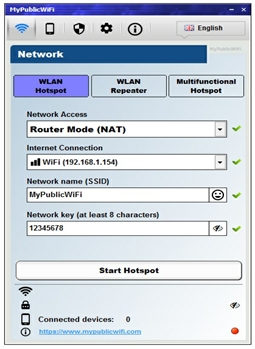
Step 4: First Start MyPublicWifi and Configure as you see in Following Picture.


Step 5: Now Click on "Set up and Start Hotspot". Now your MyPublicWifi or Virtual Wifi is active.

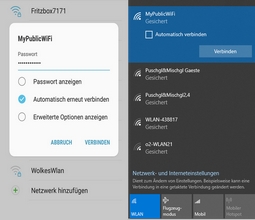
You can connect your mobile phone or Laptop with MyPublicWifi and access the internet or network services.
If you want to Stop MyPublicWifi, then Click on "Stop Hotspot" and your Virtual Wifi is Stop.
If you have any difficulty or any problem, then tells us through below comments form.

For more detail and information please watch this video or visit official website.


Monday, July 30, 2012

Use Your Android Phone as a Wi-Fi Hotspot for Free


Android: The Wi-Fi hotspot feature on Android phones lets you use your mobile data on multiple computers or tablets at once. The only problem is a lot of carriers have restrictions to prevent you from sharing your mobile data (which you're already paying for) for free. Computerworld posts a couple of workarounds.
First, you should know that, as with other kinds of tethering, your carrier may not be too happy with you going around their special Wi-Fi hotspot plans, and you can end up pissing them off and being charged extra (or in extreme cases, having your contract canceled). Also, these workarounds might not apply to every wireless carrier or device (it doesn't for me on T-Mobile with a Samsung Galaxy S2, but some commenters on Computerworld vouch for the method).

That said, if you only plan on using this occasionally and are willing to take the risk, here's how to get the hotspot functionality working:

Install a third-party power widget app. Computerworld suggests Extended Controls ($0.99), but you can try a free one like previously mentioned Elixir 2
Use the widget app to add a widget to your homescreen that toggles your hotspot Wi-Fi on or off.
Turn on the Wi-Fi hotspot
Pretty simple! Computerworld says that this workaround activates Android's built-in hotspot functionality, bypassing any menu-level modifications.

An alternative is to use a free app called FoxFi. It doesn't work with Android 4.1, though, and some carriers are blocking it from being downloaded, but you may be able to install it from an alternate location or with the QR code in the Play store.

If this trick works for you or you have any other suggestions, let us know in the comments below.

Source: LifeHacker

Friday, July 27, 2012

How to Forward Facebook chat to other friends.


Our mostly friend always ask that how we share or forward Facebook chat with other friends.
Sorry to say that there is no option to forward Facebook chat or message to other friends, in past Facebook had this option but now days there is no option to forward chat.
Only one method we can use that is Copy and Paste. Just copy your friend conversation and past in other friend chat box.

If you have any difficulty or any problem then tell us through below comments form.

Wednesday, July 25, 2012

Share Facebook Photos Quickly with iPhone App


Download Facebook Camera, a new iOS app which is the fastest way to post and share Facebook photos instantly from your iPhone or other Apple mobile device. As photo sharing gets more popular, and people seek faster ways to post photos, Facebook makes it less cumbersome using Facebook camera app.
Download Facebook Camera
Try the new Facebook Camera app and share Facebook photos with your Facebook friends faster than ever. When you login, you get to see all the photos shared by your Facebook friends in your news feed. What has caught the media buzz is that Facebook recently acquired Instagram, another hugely popular image sharing app, and it is to be seen how Facebook integrates / competes with Instagram.
Unlike before when you needed to post one photo at a time, the Facebook Camera app lets you select and post multiple images in one go. At the same time, it lets users post captions, tag friends and share locations. The app also features basic image editing features like crop, rotate and can add special image effects using camera filters.

Download Facebook Camera app from Apple App store. Will work with iPod, iPhone and iPad. Use it and it will change the way you use photo sharing on Facebook.


Source: QuickTips

Tuesday, July 24, 2012

Create a Free Logo for your website or blog


In this video you learn how to create a free logo for your website or blog. The free design software at www.LogoVictory.com allows you to create and download a logo for your website or blog, free using a template driven system. This video walks a user through the various tools of the design editor so that it is easy to use and create a logo. http://www.LogoVictory.com
You can add pictures, text and other shapes for best look of your logo.
How can we give it away for free? Simple, if you create a logo and download your jpeg for free, we are fine with that and thousands of people have already done it. But some people ask to create a profiessional .eps file for them from their design. They charge $50 for this. Other people ask her to put their logo on letterhead or signs or stickers. They like this as well. But the bottom line is simple, if you want a hassle-free logo at no cost, then use do-it-yourself system and have fun creating a great logo and have fun with it!

Monday, January 16, 2012

How to Find Page Rank of website.

A web designer/developer need to find out his own website page rank.
So there is simple method to find out Page Rank PR of any website.

STEP 1
Click and go on this website http://www.prchecker.info/check_page_rank.php

STEP 2
Type your website or which website you want to know page rank in URL box like www.techtipsfly.blogspot.com and click on Check PR button.

STEP 3
Now a anti-bot code box is appear. See and understand anti-bot code and type in anti-bot code box. see this example.


STEP 4
Finally click on Verify Now button and get your given website Page Rank like this 3/10.
Reference: ThinkBeyondWindow

Thursday, November 17, 2011

Use PTCL (EVO) in Linux Ubuntu 10.04

Starting from Ubuntu 9.10, Network Manager uses ModemManager to communicate with mobile broadband (CDMA, UMTS and others) cards. Ubuntu 9.10 uses version 0.2 of ModemManager which most probably has some bug because of which few modems dont get recognized. ZTE AC2726, the modem which comes with PTCL EVDO, is one of the unfortunate ones. In a previous post we have covered how to connect to PTCL EVDO in Ubuntu 9.10. If you have Ubuntu 10.04 or later you can use the following procedure to connect to PTCL EVDO.

Install usb_modeswitch using the following command:
  • sudo apt-get install usb-modeswitch usb-modeswitch-data
after installing usb_modeswitch plug your modem in. If your modem is already plugged in remove it and then plug it back in. Now use lsusb command to see if your modem is properly recognized. The output should contain a line like:
Bus xxx Device xxx: ID 19d2:fff1 ONDA Communication S.p.A.
Now go to System->Preferences->Network Connections. Click on Mobile Broadband Tab.

Now click Add. In the new window that appears, you will have ZTE device already selected.

Click on forward. Select Pakistan from Next Screen and press forward. In next screen manually enter PTCL EVDO as your provider and click forward. Now click Apply.

In the new Window enter vwireless@ptcl.com as user name and ptcl as password and click apply.

You are all set. To connect to this connection click on Network Manager icon in Taskbar. Select this newly created connection and click connect.

Sunday, November 13, 2011

How to set up a dynamic DNS for free


This Video details how to set up a dynamic DNS using DynDns.com, i also briefly go in to port forwarding and the types of uses for having a dynamic DNS linked to your router.

Some common ports are: (all TCP)
Web Server: 80
FTP Server: 21
VNC Server: 5900
Bittorrent: 6881-6889

Friday, November 11, 2011

How to create a website


Introduction

There are lot of tutorials on net on how to create website, but this guide is for absolute beginners who want to create their own simple site with few pages.
To create a website you need 3 things

Domain name or Web address (eg: This site's web address is www.shaplus.com )
Web space or the hard disk space on any web server where your website files will reside.
Website files- This is the actual pages of your site which has to be uploaded to your web space

Step 1 - Domain Name

Domain name or site's web address is the important part of a site. For each top level domains( like .com, .net, .in, .us etc) there are authorized registrars through which domain can be registered for required number of years(minimum 1 year to max 10 years). For common top level domains like (.com . org, .net ) the authorized registrars can be found in this country wise list http://www.internic.net/origin.html . So first you need to find the registrar from where you need to register the domain. If you prefer local payments options like bank check you may have to choose a registrar from your country. Pricing vary a little between registrars and it is usually less than $15 USD/year . After you find the registrar, you need to search for a domain name for your site which is not yet registered. Once decided you can register and make the payment to have the domain registered in your name.

Registering a domain means you get control of the domain but it does not give you any web space to host your site. You have to get the web space separately and then link your domain name to the web space. How to link domain with you web hosting ?When registering a domain name you also get a domain control panel from the registrar website. In this control panel, you can point your domain to any web hosting by providing the nameserver address of the web host. (usually the name server address will be like ns1.hostingprovider.com, ns2.hostingprovider.com ) . After you enter your name server address of your hosting into domain control panel, it may take few hours (maximum 48 hours)  for the actual pointing from your domain to web hosting to work. This is the time taken for data from each registrar to get propagated across domain name servers across the world.

Important : it is always recommended that you register the domain with any authorized registrars for that domain. Some hosting companies give free domain with their hosting plans but your control of the domain will be as long as you host with them. So in the future if you decide to host with another host you will loose your domain also.

About free sub domains : In case you are not ready to go for a paid domain now (like yoursitename.com), to get a quick start on website creation, you can opt for sub domains which are offered free by many sites. Sub domain sites will have address of the type (yoursitename.FreeSubDomainProvider.com). One free such sub domain provided is www.co.cc, they provide free addresses like yoursitename.co.cc (there are both free and paid subdomains at co.cc).

Step 2 - Web hosting

Next step is to signup for web hosting from any web hosting providers. There are paid as well as free web hosting available. When you signup for a web hosting plan you usually get these details

FTP login details for uploading files to your web space
Name server details (explained above in the domain step)
hosting control panel : displays details about your hosting like disk space, bandwidth etc and various other details.
There is lot of web hosting providers and it can be confusing to choose the ideal host. When choosing web hosting you will come across these terms

Web space : expressed in MB/GB/TB is the hard disk space allotted to your hosting
Bandwidth : it is the traffic allowed per month. It is also mentioned in MB/GB/TB
Guaranteed Uptime : it is percentage of time that the hosting provider give you guarantee that the website will be up and working. It is expressed as 99%, 98% etc.
Hosting platform : Windows, Linux etc If you are creating a basic HTML website, then Linux hosting would be enough, as it is cheaper compared to Windows hosting
scripting/ languages supported : PHP/Perl/Java etc. ( you need not worry about these if your site is basic html )
You can either choose a paid web hosting provider or use a free hosting provider like www.awardspace.com . Freehosting do have limitations like limit on file size, bandwdith etc but it is ideal for those learning to create sites and till you find a suitable paid hosting.


This site is hosted with Hostgator from Septemper 2007 onwards. You can try hostgator hosting for only $0.01 USD for first month using hostgator coupon code .

Step 3 - Developing your website

Now that you have the domain and web space required for your website, next step is to create actual files of your website and upload it to your web space.

First you have to create the site in a local folder in your pc . If you are not a designer, you need not worry about designing the pages, you can find lot of free templates in sited like www.oswd.org or www.openwebdesign.org . Just find the suitable template and edit the template in any text editor(like notepad) to create the pages of your site.

First page to create in your site would be the index page ( index.htm) , this would be the default page, which means the page that is displayed when only your website address is typed in browser. All other pages of your site are linked from this index page.  You may need to know the basic structure of a html file , text formating tags and other html tags.

Once you have the index.htm of your site you can copy and rename it to create other pages of your site and then change the contents of each pages. To test the site you created, open the local index.htm in your browser and check it is working ok.

Once the site is ready locally in your pc, you need to upload the contents to the web folder which your hosting provider has given. One free ftp software is filezilla.
See these tutorials on how to use filezilla to upload the files
http://www.velnetsupport.co.uk/parrots/FTP/Filezilla/
or http://www.montgomerycollege.edu/webinfo/filezilla.html