Showing posts with label Installation. Show all posts

Thursday, May 19, 2016

Use your Laptop or Mobile WiFi as hotsopt free

mHotspot is simple and easy software for Laptop and Mobile. You can sharing your internet from laptop or mobile to other WiFi devices using mHotspot free software.
There are main key functions

Extend WiFi range

A laptop installed with mHotspot can act as a repeater. Yes, the laptop can increase the range of a wifi network by generating an additional wifi network as shown in the figure below.

Track Usage

View the details of  connected devices – Name, Ip Address, Mac Address. View the Upload & Download speeds. View the amount of data used – Upload & Download.

High Speed: Stream Videos & Transfer Files

Stream videos, and share files to any device securely in 3 steps in High Speeds.

It Just Works

No external hardware or setup is required. It Just works with your laptop.

Lightweight & Simple

The brilliant feature of mHotspot is that it doesn’t require too much of RAM. Works blazing fast on low-end laptops too!

You may like How to use MyPublicWiFi

Features:


  • Connect upto 10 devices to the hotspot
  • You can set your own hotspot name without any restrictions
  • Share any type of Internet Connection(LAN, Ethernet,3G/4G,Wifi etc)
  • Android phones, ipads, PDAs, tablet-pcs and other devices can access internet
  • Stream videos and shares files to clients
  • See the details of the connected device(Name, Ip Address, Mac Address)
  • See the network usage(Upload and Download Speed, Transfer Rates)
  • Secures your wireless hotspot with WPA2 PSK password security
  • Set max. number of devices that can be connected
  • Extends your Wifi range(Acts as a repeater)
  • In-app internet selection
  • Works with Windows 7,8,10
  • Also available for Android (Turns your phone into WiFi Hotspot)
Video Tutorial

You can download mHotspot for Windows, Android and Ubuntu operation systems from below link.


Thursday, August 2, 2012

Ammyy Remote Desktop Software Free

You can easily share a remote desktop or control a server over the Internet with Ammyy Admin.
There is no matter where you are, Ammyy Admin makes it safe and easy to quickly access a remote desktop within a few seconds.


System Administration
remote desktop connection for system administration
You can manage network computers and servers remotely without complicated NAT settings adjustments or Firewall problems. Assist your colleagues with remote access software and be confident all the transmitted data is reliably secured. Using Ammyy Admin as a tool for remote desktop connection and control is the best way to save time and money.

Remote office
remote desktop sharing in remote office
You will have quick and easy access to your remote office PC desktop via the Internet from anywhere, at any time. Remote desktop access lets you retrieve necessary documents and files from your work PC or activate specific software installed on the office computer. Ammyy Admin is also a perfect solution for enabling employees to work offsite from a remote location.

On-line presentations/distance education
free remote desktop access for webinars
With Ammyy Admin it's easy to arrange on-line presentations or hold virtual classes for distance education. You can host your presentation featuring class materials right in the remote desktops of meeting participants or students in the virtual classroom, communicating with them via real-time voice chat.

No installation required
To start remote desktop control session with Ammyy Admin you don't have to download and install massive remote desktop software which brings dozens of files and records to user's and system folders or system registry.
All you have to do is to download a tiny (0.5 Mb) Ammyy Admin exe file, start it and enter a computer ID which you want to connect to. It's really the simplest way to establish a connection to a remote PC avoiding tedious settings adjustments. It will take no longer than 20 seconds from the moment you download Ammyy Admin to the moment of the first remote session launch

Built-in voice chat and file manager
You can use Ammyy Admin not only as a tool for remote desktop connections and control but also as a free tool for voice communication with your relatives and partners over the Internet. Moreover Ammyy Admin offers a convenient file manager which makes it easy and quick to retrieve files from remote PC.

Control of unattended computers
Ammyy Admin allows its users to administer a remote unattended server or PC with the use of Ammyy Admin Service feature. This includes option to restart computer remotely, log in/log off or switch users. Present feature is the most actual among system administrators.

For download this software Click Here
For more help and information please watch this video


Source: Ammyy

Tuesday, July 31, 2012

How to use MyPublickWifi


Many users ask these questions,
How I access internet from my Laptop that is connected with Internet and my Phone is Wifi enable.
How I create Wifi hotspot in my Laptop or Computer.
How I use my Laptop or Computer with WLan as WiFi Access Point.
These all question answer is explained in following method.

Requirement:

  • Wireless Card for PC or Wifi enable Laptop.
  • MyPublicWiFi Software (Click Here to download)

Step 1: Download MyPublicWifi
Step 2: Install MyPublicWifi in your PC or Laptop.
Step 3: If your wifi or WLan is disable, then Enable it
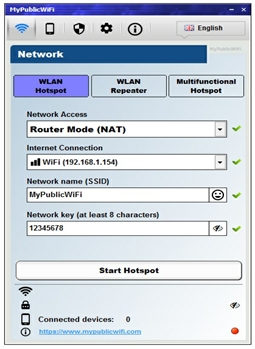
Step 4: First Start MyPublicWifi and Configure as you see in Following Picture.


Step 5: Now Click on "Set up and Start Hotspot". Now your MyPublicWifi or Virtual Wifi is active.

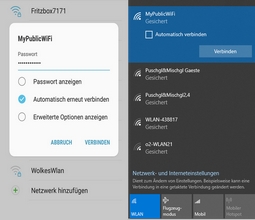
You can connect your mobile phone or Laptop with MyPublicWifi and access the internet or network services.
If you want to Stop MyPublicWifi, then Click on "Stop Hotspot" and your Virtual Wifi is Stop.
If you have any difficulty or any problem, then tells us through below comments form.

For more detail and information please watch this video or visit official website.


Thursday, November 10, 2011

Install Windows XP from USB Flash/Pen Drive

You might have installed Vista, Windows 7 from your USB flash drive. But if you want to install


usb-driveWindows  XP from  USB flash drive then you should face some problem because the Windows XP does not have the feature of booting from a USB flash drive. But you can still install windows XP from  USB flash drive. This becomes very useful if your CD/DVD ROM is not working properly.
Tip: Fix USb problems
Update: Create multiboot USB drive to install both Windows XP and Windows 7.
Actually, the installation CD of XP is a bootable cd. When you insert the disk in your CD/DVD ROM then the machine detects that it is a bootable cd and prompts for “Press any key to boot from cd”. By then you can format your hard disk,make partitions in it and over all then you can  install Windows XP also Vista and Windows 7 in your system. The same task you can perform with your USB flash drive. But generally it is not easy to make a bootable USB flash drive for XP. I shall discuss the process in two parts. The first process has been discussed in this post and the second process is discussed in  Install Windows XP From USB Flash Drive Part-II. I refer to follow the Part-II version. Here is the link of Part-II.

How to install Windows XP from USB flash drive Part-I

At first download the softwareWin to Flash . It does not need the installation. After running the setup file the following screen will appear.
install-xp-from-usb-flash-drive-1
From Task tab you can chose your task.
install-xp-from-usb-flash-drive-2
After choosing task press next .
install-xp-from-usb-flash-drive-3
Select the source path of the windows installation disk or copy and then the path of your USB flash drive.
install-xp-from-usb-flash-drive-4
Now the exact bootable copy will be made in the USB Flash drive.
You can now install Windows XP from Flash drive.It is pretty easy method to install Windows XP from your Usb flash drive.If any problem arises then contact us.You can also manually build your USB flash drive enabled for installing XP in it.
But that process is quite complex and so I recommend the process Install Windows XP from USB Flash Drive part-II. Any question or suggestion is always welcome.

Saturday, November 5, 2011

Installation of Windows 10 Video Guide

Learn How to Install Windows 10 on your laptop or computer from USB Device.


This short Video will guide you through doing a clean install of Windows 10 from USB. How to install Windows 10 from a flash drive. you would need a 4 GB USB flash drive, or 8 GB for the 64-bit version.