Showing posts with label wifi. Show all posts

Wednesday, May 17, 2017

How to Enable USB Tethering from Android Mobile

Many Friends asking about that How I can use my mobile internet on my Computer through USB data cable, because my computer did not have wifi device
OR
I did not want to open wifi hotspot of my mobile other people use my phone internet.
So here is solution for that people who want to use Mobile Wifi Internet or Data Internet on computer / pc through USB Data cable.
In this way you can share the Android phone’s digital cellular connection or wifi connection is to connect the phone directly to a computer and activate the tethering feature. Not every Android phone has this capability.
Tethering is a solid way to provide Internet access to another gizmo, such as a laptop or a desktop computer. Follow these steps to set up Internet tethering:
1. Connect the phone to a computer or laptop by using the USB cable.
The best success with this operation is when the computer is a PC running Windows.
2. Open the Android Phone Settings.
3. Choose More, and then choose Tethering & Mobile Hotspot.
4. Place a check mark by the USB Tethering item.
Internet tethering is activated.
The other device should instantly recognize the phone as a “modem” with Internet access. Further configuration may be required, which depends on the computer using the tethered connection. For example, you may have to accept the installation of new software when prompted by Windows.
• When tethering is active, a Tethering or Hotspot Active notification icon appears. Choose that notification to further configure tethering.
• Unlike creating a Wi-Fi hotspot, you don’t need to disable the Wi-Fi radio to activate USB tethering.
• Sharing the digital network connection incurs data usage charges against your cellular data plan. Be careful with your data usage when you’re sharing a connection.

Watch this video for more details


Source: dummies.com

Thursday, May 19, 2016

Use your Laptop or Mobile WiFi as hotsopt free

mHotspot is simple and easy software for Laptop and Mobile. You can sharing your internet from laptop or mobile to other WiFi devices using mHotspot free software.
There are main key functions

Extend WiFi range

A laptop installed with mHotspot can act as a repeater. Yes, the laptop can increase the range of a wifi network by generating an additional wifi network as shown in the figure below.

Track Usage

View the details of  connected devices – Name, Ip Address, Mac Address. View the Upload & Download speeds. View the amount of data used – Upload & Download.

High Speed: Stream Videos & Transfer Files

Stream videos, and share files to any device securely in 3 steps in High Speeds.

It Just Works

No external hardware or setup is required. It Just works with your laptop.

Lightweight & Simple

The brilliant feature of mHotspot is that it doesn’t require too much of RAM. Works blazing fast on low-end laptops too!

You may like How to use MyPublicWiFi

Features:


  • Connect upto 10 devices to the hotspot
  • You can set your own hotspot name without any restrictions
  • Share any type of Internet Connection(LAN, Ethernet,3G/4G,Wifi etc)
  • Android phones, ipads, PDAs, tablet-pcs and other devices can access internet
  • Stream videos and shares files to clients
  • See the details of the connected device(Name, Ip Address, Mac Address)
  • See the network usage(Upload and Download Speed, Transfer Rates)
  • Secures your wireless hotspot with WPA2 PSK password security
  • Set max. number of devices that can be connected
  • Extends your Wifi range(Acts as a repeater)
  • In-app internet selection
  • Works with Windows 7,8,10
  • Also available for Android (Turns your phone into WiFi Hotspot)
Video Tutorial

You can download mHotspot for Windows, Android and Ubuntu operation systems from below link.


Monday, April 11, 2016

How To Increase Wi-Fi Signal Strength on Laptop

Today in this blog post “How to use MyPublicWifi” post my blog visitor asks question that gives me suggestions to improve or boost the strength of Wi-Fi signals on Laptop, so I decide that I need to write post on how to increase Wi-Fi signal strength on laptop or my laptop Wi-Fi signals are very poor how to improve it.


Nowadays all Laptop’s Wi-Fi is stronger than smartphone’s Wi-Fi radio. So, you will get better Wi-Fi signal and speed on Laptop. However, if the Wi-Fi network is really very weak, I recommend you to go near to the Wi-Fi network. If you are at the best place, and still not getting good results then follow these tricks and boost Wi-Fi signals. These tricks will surely boost your Wi-Fi Signal on Laptop.

Tip No. 1. Upgrade Your Wi-Fi Router

Recent laptops are using 802.11g or 802.11n Wi-Fi circuitry to efficiently utilize Wi-Fi networks. If your router is an 802.11b device, upgrade it so that it can match the speed of your laptop.

Tip No. 2. Use Wi-Fi Signal Repeater

To add more strength to your Wi-Fi signal, use Wi-Fi repeater (also called wireless amplifier or range expander). It get Wi-Fi signals from Wi-Fi routers and then retransmits it or throw it. Place your Wi-Fi repeater somewhere near the edge of existing signal to make the best use of the device. It will then rebroadcast the signal, covering other areas for the connection.

Tip No. 3. Replace Standard Router Antenna with Omnidirectional

The advantage of Omni antenna is to provide a signal in all direction. The directional signal allows you to target the location where you want to the signal.

Tip No. 4. Install External Wi-Fi Adaptor

Laptops adapters are good but external Wi-Fi adapters are great. If your laptop is old and so you’re not getting better Wi-Fi signal, disable built-in Wi-Fi and installing an external Wi-Fi adapter. External Wi-Fi Adapters have a large antenna and they use up-to-date technologies which can drastically improve Wi-Fi signal for your laptop.

Tip No. 5. Reposition Wi-Fi router

If possible, try to place your router at the center location, prefer a place where thick walls or obstructing furniture can’t congest your signal. Also, avoid placing your router or access point near to any metal surface, electronics that use signals (like Microwave, remote control doors, etc.). They interfere with a signal broadcaster.

Tip No. 6. Disable Network Hogs

Use task manager of any other program to check which apps are running in the background and using a network. Disable unused applications out of it so that your network speed and laptop’s performance both can be the boost.

Tuesday, July 31, 2012

How to use MyPublickWifi


Many users ask these questions,
How I access internet from my Laptop that is connected with Internet and my Phone is Wifi enable.
How I create Wifi hotspot in my Laptop or Computer.
How I use my Laptop or Computer with WLan as WiFi Access Point.
These all question answer is explained in following method.

Requirement:

  • Wireless Card for PC or Wifi enable Laptop.
  • MyPublicWiFi Software (Click Here to download)

Step 1: Download MyPublicWifi
Step 2: Install MyPublicWifi in your PC or Laptop.
Step 3: If your wifi or WLan is disable, then Enable it
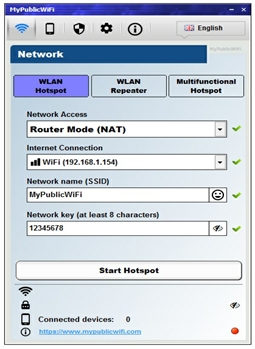
Step 4: First Start MyPublicWifi and Configure as you see in Following Picture.


Step 5: Now Click on "Set up and Start Hotspot". Now your MyPublicWifi or Virtual Wifi is active.

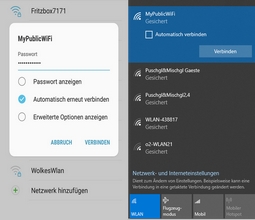
You can connect your mobile phone or Laptop with MyPublicWifi and access the internet or network services.
If you want to Stop MyPublicWifi, then Click on "Stop Hotspot" and your Virtual Wifi is Stop.
If you have any difficulty or any problem, then tells us through below comments form.

For more detail and information please watch this video or visit official website.


Monday, July 30, 2012

Use Your Android Phone as a Wi-Fi Hotspot for Free


Android: The Wi-Fi hotspot feature on Android phones lets you use your mobile data on multiple computers or tablets at once. The only problem is a lot of carriers have restrictions to prevent you from sharing your mobile data (which you're already paying for) for free. Computerworld posts a couple of workarounds.
First, you should know that, as with other kinds of tethering, your carrier may not be too happy with you going around their special Wi-Fi hotspot plans, and you can end up pissing them off and being charged extra (or in extreme cases, having your contract canceled). Also, these workarounds might not apply to every wireless carrier or device (it doesn't for me on T-Mobile with a Samsung Galaxy S2, but some commenters on Computerworld vouch for the method).

That said, if you only plan on using this occasionally and are willing to take the risk, here's how to get the hotspot functionality working:

Install a third-party power widget app. Computerworld suggests Extended Controls ($0.99), but you can try a free one like previously mentioned Elixir 2
Use the widget app to add a widget to your homescreen that toggles your hotspot Wi-Fi on or off.
Turn on the Wi-Fi hotspot
Pretty simple! Computerworld says that this workaround activates Android's built-in hotspot functionality, bypassing any menu-level modifications.

An alternative is to use a free app called FoxFi. It doesn't work with Android 4.1, though, and some carriers are blocking it from being downloaded, but you may be able to install it from an alternate location or with the QR code in the Play store.

If this trick works for you or you have any other suggestions, let us know in the comments below.

Source: LifeHacker