Showing posts with label Software. Show all posts

Thursday, May 19, 2016

Use your Laptop or Mobile WiFi as hotsopt free

mHotspot is simple and easy software for Laptop and Mobile. You can sharing your internet from laptop or mobile to other WiFi devices using mHotspot free software.
There are main key functions

Extend WiFi range

A laptop installed with mHotspot can act as a repeater. Yes, the laptop can increase the range of a wifi network by generating an additional wifi network as shown in the figure below.

Track Usage

View the details of  connected devices – Name, Ip Address, Mac Address. View the Upload & Download speeds. View the amount of data used – Upload & Download.

High Speed: Stream Videos & Transfer Files

Stream videos, and share files to any device securely in 3 steps in High Speeds.

It Just Works

No external hardware or setup is required. It Just works with your laptop.

Lightweight & Simple

The brilliant feature of mHotspot is that it doesn’t require too much of RAM. Works blazing fast on low-end laptops too!

You may like How to use MyPublicWiFi

Features:


  • Connect upto 10 devices to the hotspot
  • You can set your own hotspot name without any restrictions
  • Share any type of Internet Connection(LAN, Ethernet,3G/4G,Wifi etc)
  • Android phones, ipads, PDAs, tablet-pcs and other devices can access internet
  • Stream videos and shares files to clients
  • See the details of the connected device(Name, Ip Address, Mac Address)
  • See the network usage(Upload and Download Speed, Transfer Rates)
  • Secures your wireless hotspot with WPA2 PSK password security
  • Set max. number of devices that can be connected
  • Extends your Wifi range(Acts as a repeater)
  • In-app internet selection
  • Works with Windows 7,8,10
  • Also available for Android (Turns your phone into WiFi Hotspot)
Video Tutorial

You can download mHotspot for Windows, Android and Ubuntu operation systems from below link.


Wednesday, August 22, 2012

Format USB Disk in DOS

Many times people ask this question "I can't format my USB or Flash Drive in Windows, how to I format my USB or 16GB USB or Flash Memory or Memory Card or SD Card in MS DOS or DOS"
If you find this question answer, then you come on correct place and follow these step, very simple.

Step 1: Insert your USB or Flash Memory in computer.
Step 2: Double click on My Computer icon at Desktop
Step 3: Note the USB or Removable Disk Portion name and Letter (i.e Memory Card (H)).
Step 4: Click on Start menu button > Run and type "cmd" press Enter keyboard button.
Step 5: Now you see a black window called DOS Promote.
Step 6: Type this command "format H:" and press Enter keyboard key. H is your USB driver name latter, it depend upon your computer.
Step 7: When you press Enter key, computer ask you question in yes or no (Y/N), you must type Y and press Enter key.

Now Format process is start and percentage increase continually, when it become to 100%, it mean your USB drive completely formatted.
For more detail watch this video.


If you have any suggestion or any question, please give comments in below comments form.
We respect your suggestion and waiting for your response.

Reference: ThinkBeyondWindow

Monday, August 6, 2012

How to Save Word 2007 file in Word 2003

Many time we send ms office files through Email or USB but some time other user complain that, it is not working or not open in my computer, the actual problem is that, you use new version of ms office like 2010 or 2007 and other user use old version like ms office 2003.
In this video tutorial you learn how to save ms office 2010 or ms office 2007 files in old version office like ms office 2003.
So watch this video carefully.

Thursday, August 2, 2012

Ammyy Remote Desktop Software Free

You can easily share a remote desktop or control a server over the Internet with Ammyy Admin.
There is no matter where you are, Ammyy Admin makes it safe and easy to quickly access a remote desktop within a few seconds.


System Administration
remote desktop connection for system administration
You can manage network computers and servers remotely without complicated NAT settings adjustments or Firewall problems. Assist your colleagues with remote access software and be confident all the transmitted data is reliably secured. Using Ammyy Admin as a tool for remote desktop connection and control is the best way to save time and money.

Remote office
remote desktop sharing in remote office
You will have quick and easy access to your remote office PC desktop via the Internet from anywhere, at any time. Remote desktop access lets you retrieve necessary documents and files from your work PC or activate specific software installed on the office computer. Ammyy Admin is also a perfect solution for enabling employees to work offsite from a remote location.

On-line presentations/distance education
free remote desktop access for webinars
With Ammyy Admin it's easy to arrange on-line presentations or hold virtual classes for distance education. You can host your presentation featuring class materials right in the remote desktops of meeting participants or students in the virtual classroom, communicating with them via real-time voice chat.

No installation required
To start remote desktop control session with Ammyy Admin you don't have to download and install massive remote desktop software which brings dozens of files and records to user's and system folders or system registry.
All you have to do is to download a tiny (0.5 Mb) Ammyy Admin exe file, start it and enter a computer ID which you want to connect to. It's really the simplest way to establish a connection to a remote PC avoiding tedious settings adjustments. It will take no longer than 20 seconds from the moment you download Ammyy Admin to the moment of the first remote session launch

Built-in voice chat and file manager
You can use Ammyy Admin not only as a tool for remote desktop connections and control but also as a free tool for voice communication with your relatives and partners over the Internet. Moreover Ammyy Admin offers a convenient file manager which makes it easy and quick to retrieve files from remote PC.

Control of unattended computers
Ammyy Admin allows its users to administer a remote unattended server or PC with the use of Ammyy Admin Service feature. This includes option to restart computer remotely, log in/log off or switch users. Present feature is the most actual among system administrators.

For download this software Click Here
For more help and information please watch this video


Source: Ammyy

Tuesday, July 31, 2012

How to use MyPublickWifi


Many users ask these questions,
How I access internet from my Laptop that is connected with Internet and my Phone is Wifi enable.
How I create Wifi hotspot in my Laptop or Computer.
How I use my Laptop or Computer with WLan as WiFi Access Point.
These all question answer is explained in following method.

Requirement:

  • Wireless Card for PC or Wifi enable Laptop.
  • MyPublicWiFi Software (Click Here to download)

Step 1: Download MyPublicWifi
Step 2: Install MyPublicWifi in your PC or Laptop.
Step 3: If your wifi or WLan is disable, then Enable it
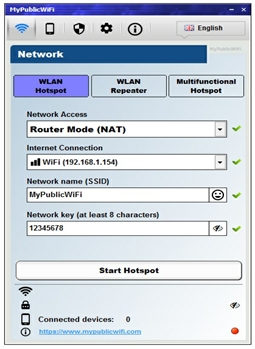
Step 4: First Start MyPublicWifi and Configure as you see in Following Picture.


Step 5: Now Click on "Set up and Start Hotspot". Now your MyPublicWifi or Virtual Wifi is active.

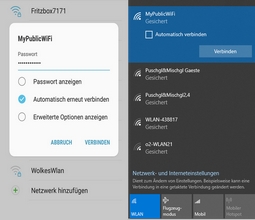
You can connect your mobile phone or Laptop with MyPublicWifi and access the internet or network services.
If you want to Stop MyPublicWifi, then Click on "Stop Hotspot" and your Virtual Wifi is Stop.
If you have any difficulty or any problem, then tells us through below comments form.

For more detail and information please watch this video or visit official website.


Wednesday, July 25, 2012

Share Facebook Photos Quickly with iPhone App


Download Facebook Camera, a new iOS app which is the fastest way to post and share Facebook photos instantly from your iPhone or other Apple mobile device. As photo sharing gets more popular, and people seek faster ways to post photos, Facebook makes it less cumbersome using Facebook camera app.
Download Facebook Camera
Try the new Facebook Camera app and share Facebook photos with your Facebook friends faster than ever. When you login, you get to see all the photos shared by your Facebook friends in your news feed. What has caught the media buzz is that Facebook recently acquired Instagram, another hugely popular image sharing app, and it is to be seen how Facebook integrates / competes with Instagram.
Unlike before when you needed to post one photo at a time, the Facebook Camera app lets you select and post multiple images in one go. At the same time, it lets users post captions, tag friends and share locations. The app also features basic image editing features like crop, rotate and can add special image effects using camera filters.

Download Facebook Camera app from Apple App store. Will work with iPod, iPhone and iPad. Use it and it will change the way you use photo sharing on Facebook.


Source: QuickTips

Monday, July 23, 2012

How to Recover Deleted Data from Memory Card Step by Step


How to Recover Deleted Data from Memory Card Step by Step
In this tutorial you learn step by step how to recover data from memory card that you ever accidentally deleted from your cameras memory card? Or pressed the Format button instead of delete button and wiped your card clean?
Searching on Google for recover data/photos from memory card, and you’ll find lot of programs out there for sale. Most people don’t mind paying to recover some important pictures and that’s why those programs exist.
However, there are also a lot of good open source / freeware apps out there that can usually get the job done. And that’s where the nice people at CONVAR come in – offering a program called PC Inspector Smart Recovery, which can recover lost pictures for free. What’s even better is that it’s extremely easy to use and works well (based on my tests).
Please note that after you’ve lost the picture, do not take any more pictures or write any data on your memory card, as writing new data to the card lowers your chances of recovering the picture. Also note, that recovering the picture is not 100% guaranteed, but there’s a good chance your picture will be recovered.


PC INSPECTOR Smart Recovery is a 100% free program, which can recover lost data from not only memory sticks, but also for any kind of memory device available nowadays. If you have deleted any kind of file, you can usually rely on PC INSPECTOR Smart Recovery to recreate and reconstruct the file again, with great accuracy.
PC INSPECTOR Smart Recovery runs on all Win 9x, ME, NT 4.0, XP and Windows 2000 systems and supports the following picture formats: .jpg, .amr, .tif, .bmp, .gif, Canon .crw , Fuji .raf , RICOH .raw, Olympus .orf (E-XX), Olympus .orf (C5050), Nokia 3gp, Kodak .dcr, Minolta .mrw, Nikon .nef (D1H/D1X), Nikon .nef (D2H/D2X), Nikon .nef (E5000/E5700), Sigma – Foveon .x3f, mp4, QuickTime .mov (Konica Minolta). Video files in .avi, QuickTime .mov format and audio files in .wav, .dss format can also be recovered.
Using the software is straightforward and doesn’t need a detailed explanation. Simply plug in your memory device, run the program, and you’re set. But if you really want a step by step instruction, here it is:
Step 1: Download PC INSPECTOR Smart Recovery. Click Here for download
Step 2: Connect your memory card, either by a little memory card reader, or hook your camera up to the PC via the data cable.
Step 3: Run PC INSPECTOR Smart Recovery.
Step 4: Select the drive which is the memory card. It should be the one that has just connected.
Step 5: Leave the format type as .JPG.
Step 6: Choose a destination for the recovered files.
Step 7: Press ‘Start’.


If you are able to recover the picture, but you can’t view it, you may want to perform a search on how to view damaged or corrupted files.
As a test, I deleted some pictures from my Sony digital camera and run PC Inspector to see if I could get them back. So far, it’s been able to recover the deleted pictures and videos as long as I don’t take any other pictures after the deletion.


You may also like


Monday, January 16, 2012

Recover Deleted Photos and Videos from memory card

So today I thought I’d take a chance to give a review of an application that can be very useful and has come to the rescue before. The program that I’m talking about is called “Recuva” and is used to recover files that have been deleted.
Normally, when you delete a file in a Windows OS the file is moved to the “Recycle Bin” (unless you have disabled the recycle bin, or the file is too big for the recycle bin.) But after you empty the Recycle Bin, it’s gone forever right?
The answer is no. When a file is removed from the recycle bin, it’s still on your hard drive (or SD card, or thumbdrive, etc.) it’s just been marked by the operating system to be deleted. This means that until the OS needs that space for another file, it’s still there, although you can’t see it.
Recuva, allows you to find files that have been “deleted’ but are still hanging around. Recuva is made by Pirirform, the makers of CCleaner and Defraggler. All of these software applications are free to download and use, but if they help you out, consider making a Pay Pal donation through the website to the company for their hard work.
A quick note. Recuva finds files that have been marked for deletion but have not been overwritten yet. If you download the Recuva app to the hard drive that contains the files you are trying to recover, then there is a good chance that you may overwrite those files with the Recuva program. The best thing to do is download it and install it before you need it so that you won’t overwrite the files, or you can download and run the program from a thumb drive  or external drive (i.e. portable mode).
I’ll walk you through an example of how to use the program. So let’s say I have an SD Card in my Windows PC that has some vacation pictures on it, and I accidentally delete them and they’re not in the Recycle Bin. Fire up Recuva, this opens the “Recuva Wizard”:
Fig2
Click next. The next screen gives you a listing of file types to recover:
Fig3
So I’ll select “Pictures” and click Next again. The next window asks where the files are located. If you’re not sure you can click the first option which will search the entire computer for files indexed as deleted. Depending on the size of the hard drive this could take some time, so it’s best to narrow down the search if you can. You can also select: My Documents, media card or iPod, the Recycle Bin, or you can browse to a specific directory location. I’m going to select the “G” drive, because I know that is the location of my SD card.

You may also like


Fig4
Click Next again. Recuva lets you know that it will now attempt to recover the files in the location you have selected. Click Start to begin or Back to change something on a previous screen. You can also select a “deep scan” for a more in depth search. This could take some time. Since we’re just showing an example I click Start.
Fig 5
And now we see that not only did Recuva find the files I recently deleted, but it also found some old graduation photos that were still on the flash card that had not been overwritten yet. So just simply check the files to recover and click the “Recover” button in the bottom right.
Fig6
When you choose your files and click recover, you can then browse to the location on your computer that you would like the files to be placed. To easily find them I’ll go to my Desktop.
Fig 7
Click OK and you’ll get a progress bar showing the file recovery:
Fig 8
And then another box when it’s complete:
Fig9
Now the wizard is meant to be easy and simplistic. There are a lot of other advanced options you can access by going through the Recuva menu.
As always, if you have any questions or have a topic you’d like to see in a future blog, leave me a comment. Thanks for reading.

Wednesday, November 16, 2011

How to configure Gmail account in Outlook.

Why should I use Outlook for my Gmail address?

Although the web based system of Google Gmail is one of the most feature rich webmail platforms, you may want to handle your Gmail account & messages from a client email software program such as Microsoft Outlook. For example, if you are using other email addresses and not just the Gmail account, most likely you would want to read and handle all your email accounts from the same interface & program.

dots Configuring the Outook Gmail settings.

You can configure Outlook to handle your Gmail account as a POP3 or as an IMAP account. Depending on your choice, you have to enable the related account option in your Gmail account (Gmail Settings -> Forwarding and POP/IMAP).


  • Below, we will detail how to setup Microsoft Office Outlook 2000 to 2010 to send, receive and store email messages for a Gmail address. Before getting started, please make sure you know your Gmail email address and your Gmail password.
  • Start Outlook: from the main Outlook window, go to Tools -> Email Accounts.
    selecting the Outlook email accounts for Gmail
    On the Outlook popup window, select to "Add a new e-mail account" and click on Next.
    Outlook add email account
    On the server type step, select POP3 or IMAP (depending on your needs) for the Outlook email account type, then click on Next. There is no need to select the IMAP type, because the Gmail web based account will anyway keep a copy of all emails, just like an IMAP account would do.
    gmail pop3 for outlook
    On the next screen, you will have to specify your Outlook Gmail settings, such as your Gmail username and password, Gmail server addresses, Gmail server ports and Outlook Gmail display name.


  • On the User Information section, enter your Name (it can be anything, but remember this is going to be the name/text that people will see when you will send them an email via your Outlook Gmail account) and your Gmail email address.
  • On the Server Information section, enter the Google Gmail servers:

    POP Gmail servers for Outlook:
    - Incoming mail server: pop.gmail.com
    - Outgoing mail server: smtp.gmail.com.

    IMAP Gmail server for Outlook:
    - Incoming mail server: imap.gmail.com
    - Outgoing mail server: smtp.gmail.com.

    As an alternative, you may setup any other outgoing mail server that you have access to, such as your ISP's SMTP server or your own hosted outgoing server. However, if you setup a 3rd party outgoing mail server, you will not have access to sent emails via your web based Gmail account panel.
  • On the Logon Information section, enter your Gmail User Name (which is the same as your Gmail email address) and your Gmail password. Tick the box "Remember password" in order to make Outlook to store the Gmail password, so it will not ask you about it every time when Outlook will send/receive emails for the Gmail account.
  • Click on the "More Settings" button and go to the "Advanced" window tab.

    If you use Gmail as a POP Outlook account:
    - On the "Incoming server (POP3)" field, enter 995 and mark the box "This server requires an encrypted connection (SSL)";
    - On the "Outgoing server (SMTP)" field, enter 465 and mark the box "This server requires an encrypted connection (SSL)".

    If you use Gmail as an IMAP Outlook account:
    - On the "Incoming server (IMAP)" field, enter 993 and mark the box "This server requires an encrypted connection (SSL)";
    - On the "Outgoing server (SMTP)" field, enter 587 and mark the box "This server requires an encrypted connection (TLS)".

    For both POP and IMAP, you also have to enable the option "My outgoing mail server requires authentication" from the Outgoing Server tab.

    You can also change the server timeouts period: this defines the time interval for which Outlook will wait to establish a Gmail connection, before triggering a connection error. The slower your Internet connection is, the greater period you should put.
    The "Delivery" options are not important for an Outlook Gmail account: no matter what you would change here, Gmail will always keep a copy of each email on the Gmail server.

    outlook gmail servers
    When you are done setting up your Outlook Gmail advanced settings, click on OK to return to the Outlook Gmail account window.

    gmail for outlook
    To verify your Outlook Gmail setup, click on the "Test Account Settings" button: this will make Outlook to attempt to login to your Gmail account and to send & receive an Outlook test email. If the test will succeed, you will notice the test email in your Outlook Inbox folder. If the test fails, Outlook will prompt you with the error messages - most likely, you didn't setup the correct server settings or the Gmail password is wrong.
  • Saturday, November 12, 2011

    How to recover deleted files


    Learn how to recover deleted files from your computer.

    In this video tutorial you learn how to recover deleted files and folder in your computer. It is easy video guide step by step. You need to download Power Data Recovery Software. Click on following link and download this software and Install on your computer. 
    Download the program from here http://www.megaupload.com/?d=06J2M6G0

    You may also like below posts


    How to Register Avast Antivirus to Get Free License Key


    Lot of users ( me also) switched from AVG to Avast Free antivirus as AVG 2011 disappointed most of users by eating system resources and slowing down system performance. Avast 6released with Auto-Sandboxing technology including for free version users, though Avast Free Antivirus is free to use, you need to register it to get one year license key otherwise your antivirus will expire after 30 days.


    Registering Avast online is easy by entering your email address but you need to do this every time when you install Avast.


    Though requesting registration key by filling a form is recommended for offline users, its always good to have Avast license key available (even for online users) with you to enter and activate it for one year when a case of reinstall is required.

    Registering Avast to get One year free license key


    1. Visit Avast Free Antivirus registration page, fill out the page by entering your email address and other mandatory details


    2. After filling your details Click “Register free license”, you get a message that “registration was successful” license key will be send to your email address with in 24 hours after the registration.


    3. When you get license key in your email address, copy it Open Avast User interface click “Maintenance” on the left side of screen to expand and click “Registration” click Insert the license key” shown at the bottom of the screen and enter it to get one year free protection from Avast.