Showing posts with label step by step. Show all posts

Monday, April 11, 2016

How To Increase Wi-Fi Signal Strength on Laptop

Today in this blog post “How to use MyPublicWifi” post my blog visitor asks question that gives me suggestions to improve or boost the strength of Wi-Fi signals on Laptop, so I decide that I need to write post on how to increase Wi-Fi signal strength on laptop or my laptop Wi-Fi signals are very poor how to improve it.


Nowadays all Laptop’s Wi-Fi is stronger than smartphone’s Wi-Fi radio. So, you will get better Wi-Fi signal and speed on Laptop. However, if the Wi-Fi network is really very weak, I recommend you to go near to the Wi-Fi network. If you are at the best place, and still not getting good results then follow these tricks and boost Wi-Fi signals. These tricks will surely boost your Wi-Fi Signal on Laptop.

Tip No. 1. Upgrade Your Wi-Fi Router

Recent laptops are using 802.11g or 802.11n Wi-Fi circuitry to efficiently utilize Wi-Fi networks. If your router is an 802.11b device, upgrade it so that it can match the speed of your laptop.

Tip No. 2. Use Wi-Fi Signal Repeater

To add more strength to your Wi-Fi signal, use Wi-Fi repeater (also called wireless amplifier or range expander). It get Wi-Fi signals from Wi-Fi routers and then retransmits it or throw it. Place your Wi-Fi repeater somewhere near the edge of existing signal to make the best use of the device. It will then rebroadcast the signal, covering other areas for the connection.

Tip No. 3. Replace Standard Router Antenna with Omnidirectional

The advantage of Omni antenna is to provide a signal in all direction. The directional signal allows you to target the location where you want to the signal.

Tip No. 4. Install External Wi-Fi Adaptor

Laptops adapters are good but external Wi-Fi adapters are great. If your laptop is old and so you’re not getting better Wi-Fi signal, disable built-in Wi-Fi and installing an external Wi-Fi adapter. External Wi-Fi Adapters have a large antenna and they use up-to-date technologies which can drastically improve Wi-Fi signal for your laptop.

Tip No. 5. Reposition Wi-Fi router

If possible, try to place your router at the center location, prefer a place where thick walls or obstructing furniture can’t congest your signal. Also, avoid placing your router or access point near to any metal surface, electronics that use signals (like Microwave, remote control doors, etc.). They interfere with a signal broadcaster.

Tip No. 6. Disable Network Hogs

Use task manager of any other program to check which apps are running in the background and using a network. Disable unused applications out of it so that your network speed and laptop’s performance both can be the boost.

Wednesday, August 22, 2012

Format USB Disk in DOS

Many times people ask this question "I can't format my USB or Flash Drive in Windows, how to I format my USB or 16GB USB or Flash Memory or Memory Card or SD Card in MS DOS or DOS"
If you find this question answer, then you come on correct place and follow these step, very simple.

Step 1: Insert your USB or Flash Memory in computer.
Step 2: Double click on My Computer icon at Desktop
Step 3: Note the USB or Removable Disk Portion name and Letter (i.e Memory Card (H)).
Step 4: Click on Start menu button > Run and type "cmd" press Enter keyboard button.
Step 5: Now you see a black window called DOS Promote.
Step 6: Type this command "format H:" and press Enter keyboard key. H is your USB driver name latter, it depend upon your computer.
Step 7: When you press Enter key, computer ask you question in yes or no (Y/N), you must type Y and press Enter key.

Now Format process is start and percentage increase continually, when it become to 100%, it mean your USB drive completely formatted.
For more detail watch this video.


If you have any suggestion or any question, please give comments in below comments form.
We respect your suggestion and waiting for your response.

Reference: ThinkBeyondWindow

Monday, August 6, 2012

How to Save Word 2007 file in Word 2003

Many time we send ms office files through Email or USB but some time other user complain that, it is not working or not open in my computer, the actual problem is that, you use new version of ms office like 2010 or 2007 and other user use old version like ms office 2003.
In this video tutorial you learn how to save ms office 2010 or ms office 2007 files in old version office like ms office 2003.
So watch this video carefully.

Friday, August 3, 2012

How to Upload pictures / photos in Facebook

Facebook is a world largest social network. Mostly Facebook users upload photos and share with friends.
Now I show you step by step, how you upload your photos in your Facebook profile.
Follow these steps.
Step 1: Login in your Facebook account.(for login click here)
Step 2: After Login, Click  Add Photo/Video at the top of your home page.
Step 3: Click on Create Photo Album as you see in above picture.
Step 4: Now a a windows is open, Select the image files you want to upload. To select multiple photos at once, hold down the Control (Ctrl) button on your Keyboard, or the Command button on your Mac, while clicking the image files.

Step 5: Now your Album start the Photo Uploading in Facebook, While your photos are uploading, 
Write an album title and description. 
Use the audience selector to choose who can see the album (Note: If you tag people, their friends will be able to see the pictures they’re tagged in).
Add captions, tags, and locations to photos as each one finishes uploading
Step 6: Check the progress bar at bottom to see the estimated remaining time for your album upload. When it's complete, click Post Photos.
Congratulation, you successfully upload your photos in Facebook profile, now you can share this album with any one or specific peoples if you want.

If you have any idea or any problem then give comments in following comments form. we respect your comments.

Thursday, August 2, 2012

Check how much your computer processor is fast.

Find out how much fast a computer processor is by following steps:
Step 1: Go to on Desktop and Right Click on My Computer icone.
Step 2: Now click on Property to gain access to important PC operating system information.
Step 3: Now you see that a window is open and you find your computer processor model and speed information.
Determine the processing speed of a computer using Windows XP or Windows Vista or Windows 7 with this method
For more detail watch this video.

Ammyy Remote Desktop Software Free

You can easily share a remote desktop or control a server over the Internet with Ammyy Admin.
There is no matter where you are, Ammyy Admin makes it safe and easy to quickly access a remote desktop within a few seconds.


System Administration
remote desktop connection for system administration
You can manage network computers and servers remotely without complicated NAT settings adjustments or Firewall problems. Assist your colleagues with remote access software and be confident all the transmitted data is reliably secured. Using Ammyy Admin as a tool for remote desktop connection and control is the best way to save time and money.

Remote office
remote desktop sharing in remote office
You will have quick and easy access to your remote office PC desktop via the Internet from anywhere, at any time. Remote desktop access lets you retrieve necessary documents and files from your work PC or activate specific software installed on the office computer. Ammyy Admin is also a perfect solution for enabling employees to work offsite from a remote location.

On-line presentations/distance education
free remote desktop access for webinars
With Ammyy Admin it's easy to arrange on-line presentations or hold virtual classes for distance education. You can host your presentation featuring class materials right in the remote desktops of meeting participants or students in the virtual classroom, communicating with them via real-time voice chat.

No installation required
To start remote desktop control session with Ammyy Admin you don't have to download and install massive remote desktop software which brings dozens of files and records to user's and system folders or system registry.
All you have to do is to download a tiny (0.5 Mb) Ammyy Admin exe file, start it and enter a computer ID which you want to connect to. It's really the simplest way to establish a connection to a remote PC avoiding tedious settings adjustments. It will take no longer than 20 seconds from the moment you download Ammyy Admin to the moment of the first remote session launch

Built-in voice chat and file manager
You can use Ammyy Admin not only as a tool for remote desktop connections and control but also as a free tool for voice communication with your relatives and partners over the Internet. Moreover Ammyy Admin offers a convenient file manager which makes it easy and quick to retrieve files from remote PC.

Control of unattended computers
Ammyy Admin allows its users to administer a remote unattended server or PC with the use of Ammyy Admin Service feature. This includes option to restart computer remotely, log in/log off or switch users. Present feature is the most actual among system administrators.

For download this software Click Here
For more help and information please watch this video


Source: Ammyy

Tuesday, July 31, 2012

How to use MyPublickWifi


Many users ask these questions,
How I access internet from my Laptop that is connected with Internet and my Phone is Wifi enable.
How I create Wifi hotspot in my Laptop or Computer.
How I use my Laptop or Computer with WLan as WiFi Access Point.
These all question answer is explained in following method.

Requirement:

  • Wireless Card for PC or Wifi enable Laptop.
  • MyPublicWiFi Software (Click Here to download)

Step 1: Download MyPublicWifi
Step 2: Install MyPublicWifi in your PC or Laptop.
Step 3: If your wifi or WLan is disable, then Enable it
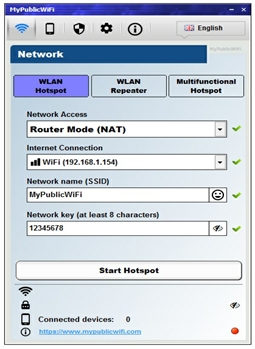
Step 4: First Start MyPublicWifi and Configure as you see in Following Picture.


Step 5: Now Click on "Set up and Start Hotspot". Now your MyPublicWifi or Virtual Wifi is active.

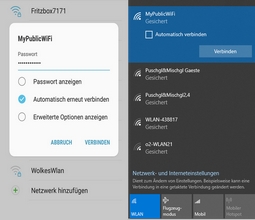
You can connect your mobile phone or Laptop with MyPublicWifi and access the internet or network services.
If you want to Stop MyPublicWifi, then Click on "Stop Hotspot" and your Virtual Wifi is Stop.
If you have any difficulty or any problem, then tells us through below comments form.

For more detail and information please watch this video or visit official website.


Friday, July 27, 2012

How to Forward Facebook chat to other friends.


Our mostly friend always ask that how we share or forward Facebook chat with other friends.
Sorry to say that there is no option to forward Facebook chat or message to other friends, in past Facebook had this option but now days there is no option to forward chat.
Only one method we can use that is Copy and Paste. Just copy your friend conversation and past in other friend chat box.

If you have any difficulty or any problem then tell us through below comments form.

Tuesday, July 24, 2012

Create a Free Logo for your website or blog


In this video you learn how to create a free logo for your website or blog. The free design software at www.LogoVictory.com allows you to create and download a logo for your website or blog, free using a template driven system. This video walks a user through the various tools of the design editor so that it is easy to use and create a logo. http://www.LogoVictory.com
You can add pictures, text and other shapes for best look of your logo.
How can we give it away for free? Simple, if you create a logo and download your jpeg for free, we are fine with that and thousands of people have already done it. But some people ask to create a profiessional .eps file for them from their design. They charge $50 for this. Other people ask her to put their logo on letterhead or signs or stickers. They like this as well. But the bottom line is simple, if you want a hassle-free logo at no cost, then use do-it-yourself system and have fun creating a great logo and have fun with it!

Monday, January 16, 2012

How to Find Page Rank of website.

A web designer/developer need to find out his own website page rank.
So there is simple method to find out Page Rank PR of any website.

STEP 1
Click and go on this website http://www.prchecker.info/check_page_rank.php

STEP 2
Type your website or which website you want to know page rank in URL box like www.techtipsfly.blogspot.com and click on Check PR button.

STEP 3
Now a anti-bot code box is appear. See and understand anti-bot code and type in anti-bot code box. see this example.


STEP 4
Finally click on Verify Now button and get your given website Page Rank like this 3/10.
Reference: ThinkBeyondWindow